
The regular guide
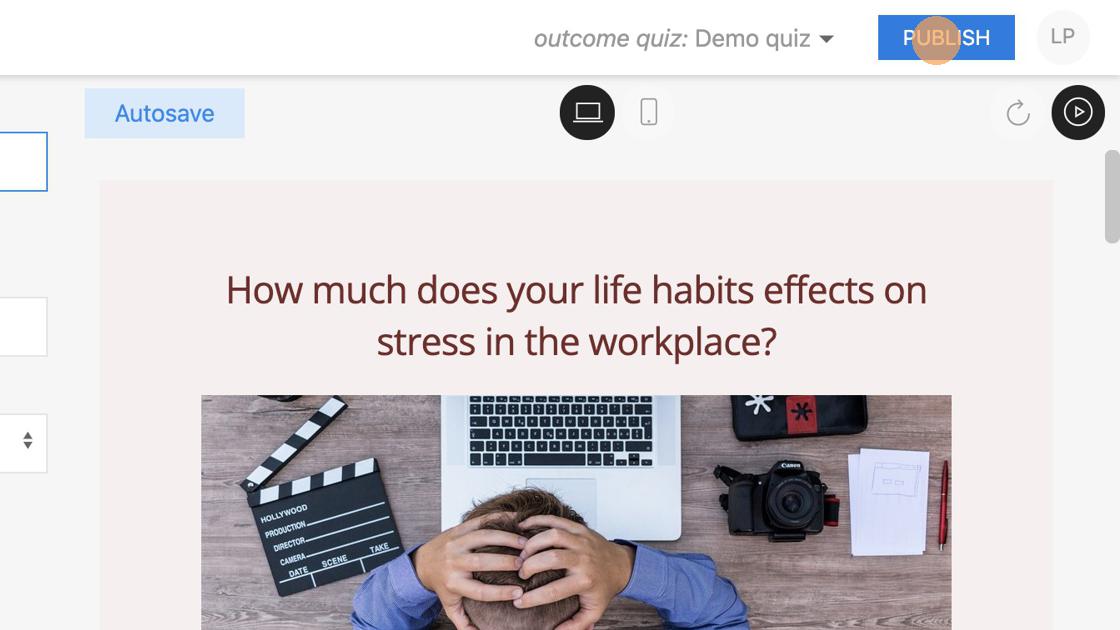
1. Firstly you need to click "PUBLISH" in order to change state from Draft to Published.
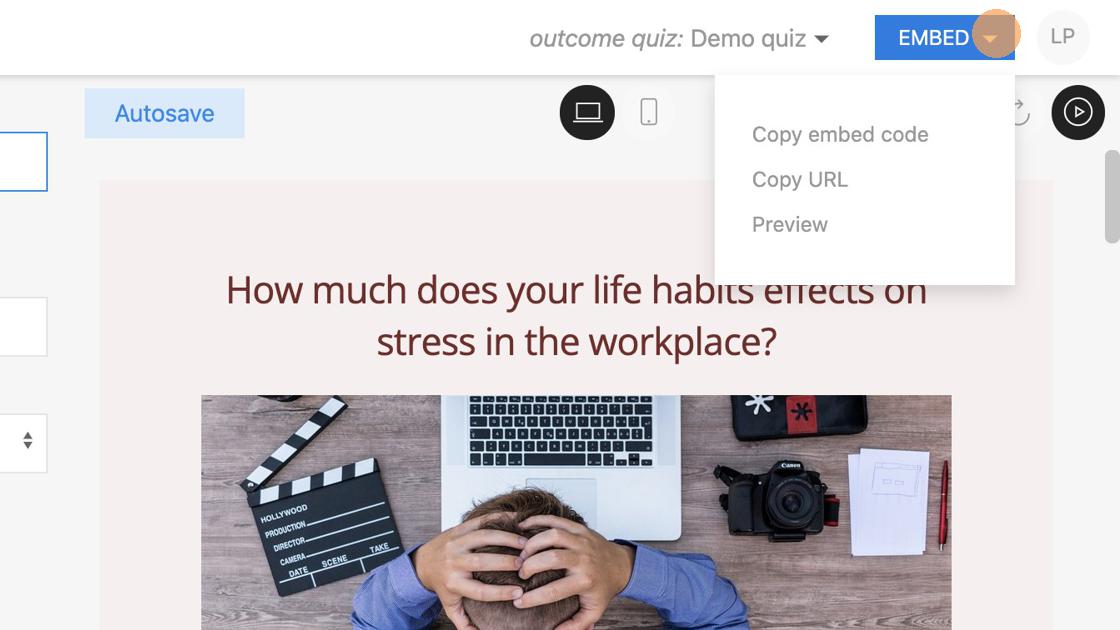
2. "PUBLISH" button will transform into "EMBED" button. Hovering over will open shortcuts for copying - embed code - experience link - experience preview
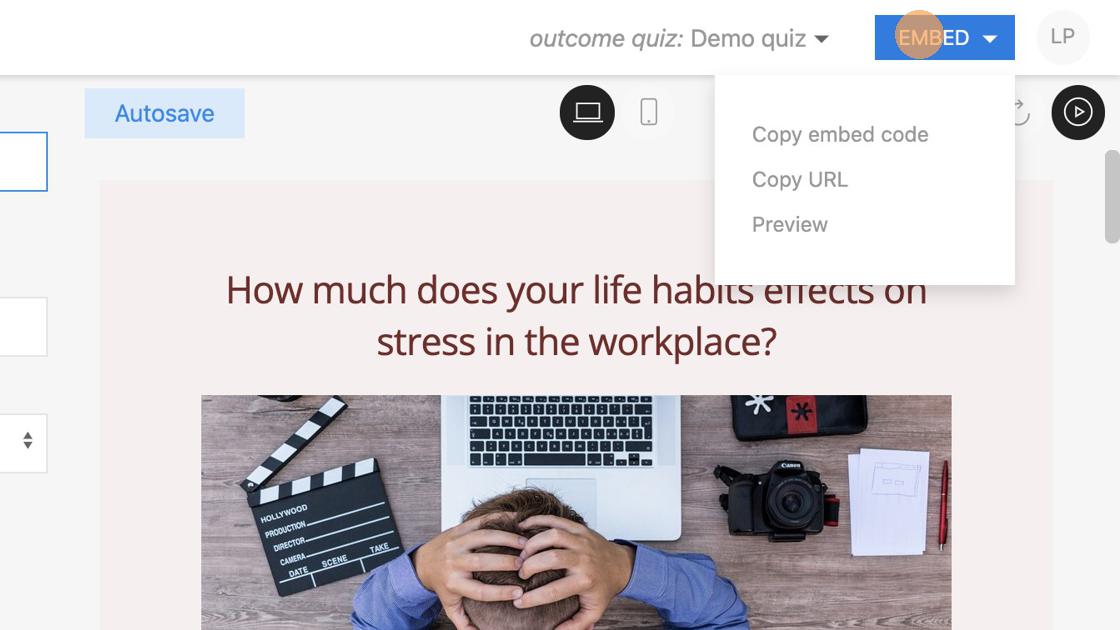
3. Clicking on the "EMBED" button will take you to the Embed section under Settings.
4. Here you can specify the URL of the website where the quiz will be embedded. This way we can redirect traffic from shared links (shares from respondents on social media) to the website where the quiz is embedded and not directly to the quiz URL.
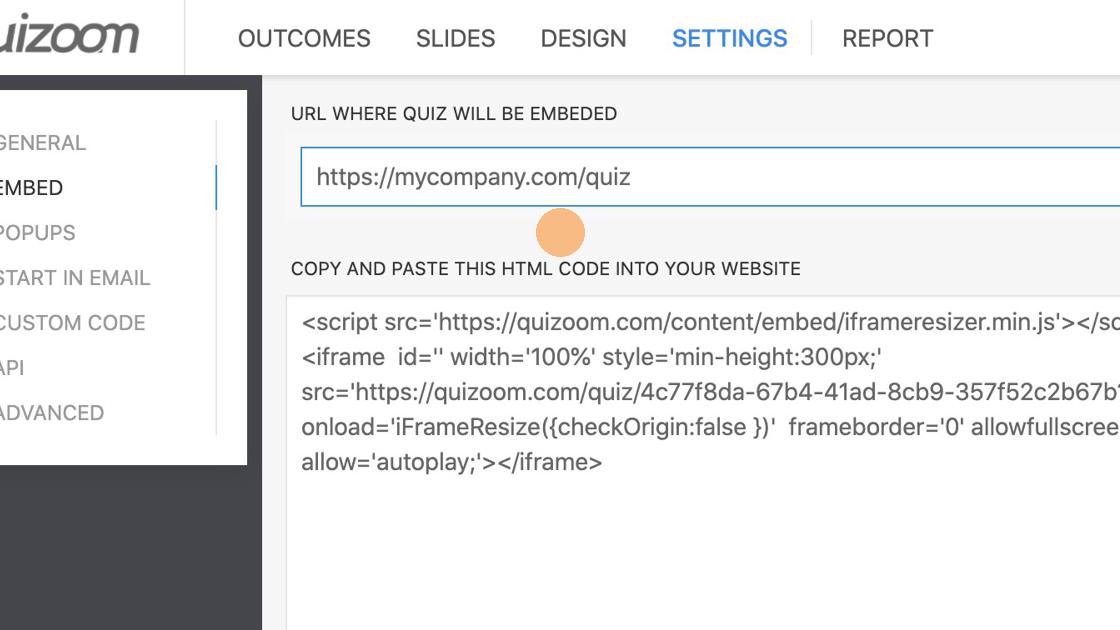
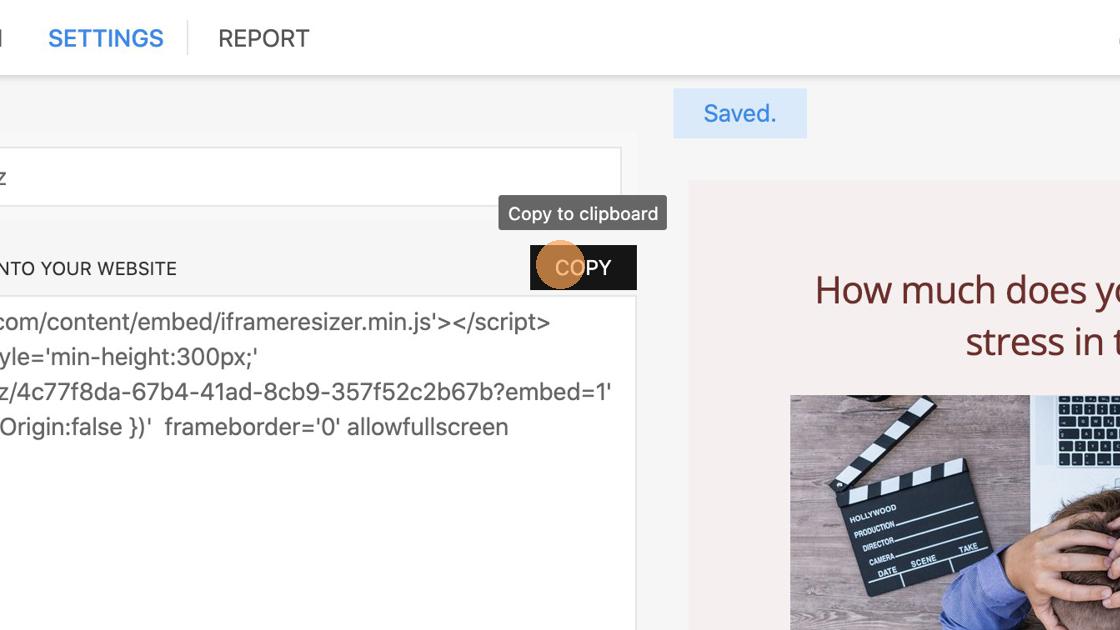
All Quizoom interactive experiences can automatically vertically resize based on the volume of content inside the experience. However, if you want a fixed height of the experience change "min-height" to "height" and set height in pixels.
5. Use "COPY" button to select and copy the embed code.