

Go through our interactive guide or scroll down to read the regular guide.
1. Scored with outcomes quiz type comes score field for each outcome.
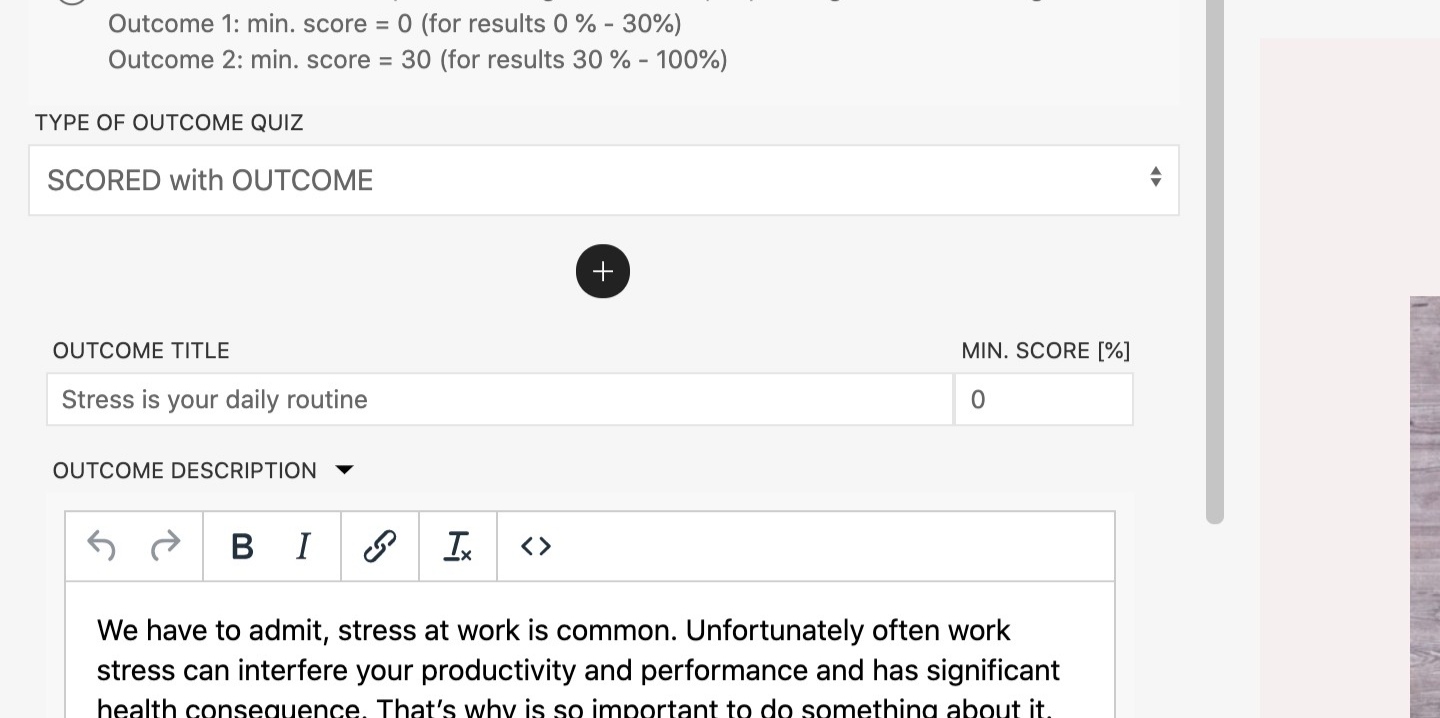
2. One outcome needs to have a score 0.
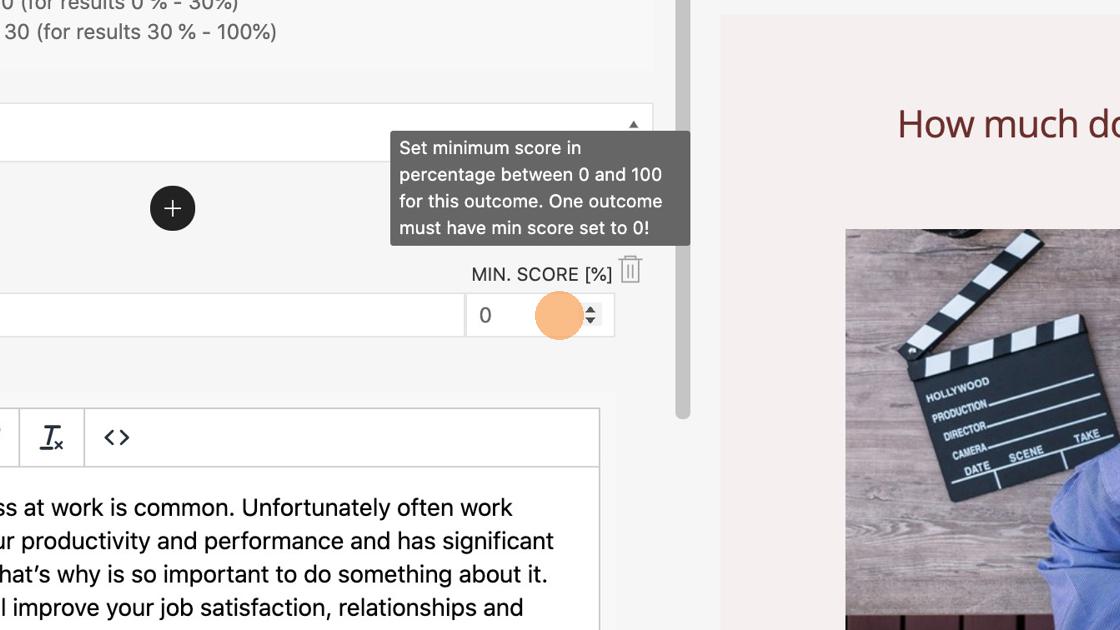
3. Set minimal score the respondent needs to collect for each outcome.
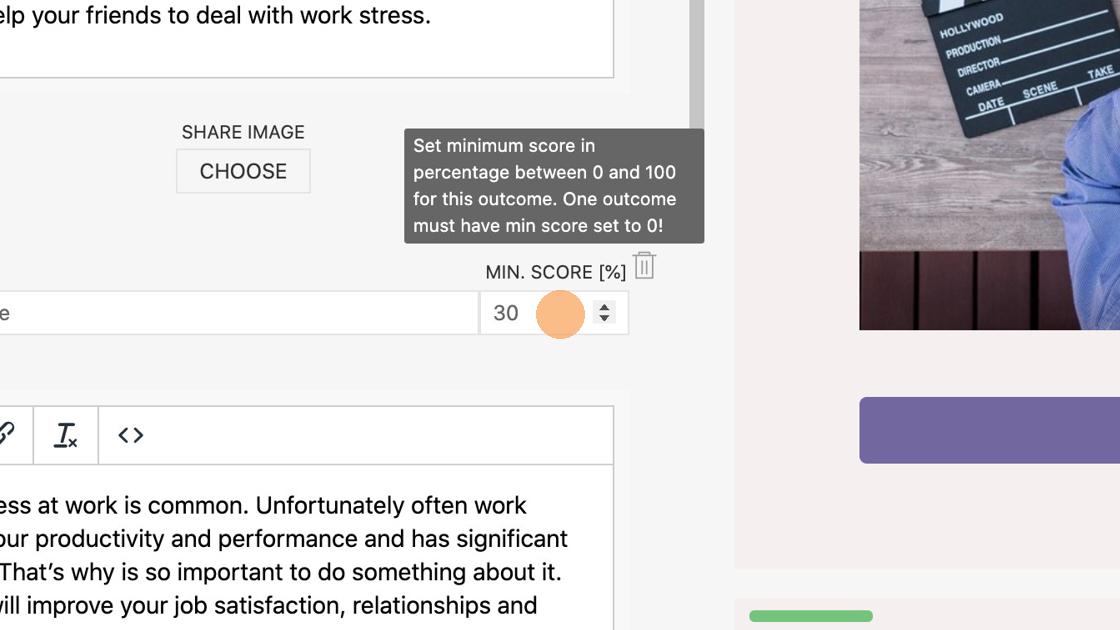
If you set 100% as a minimal score the respondent needs to answer all questions correctly.
Now that you have Outcomes with scores, you have to match them with answers.
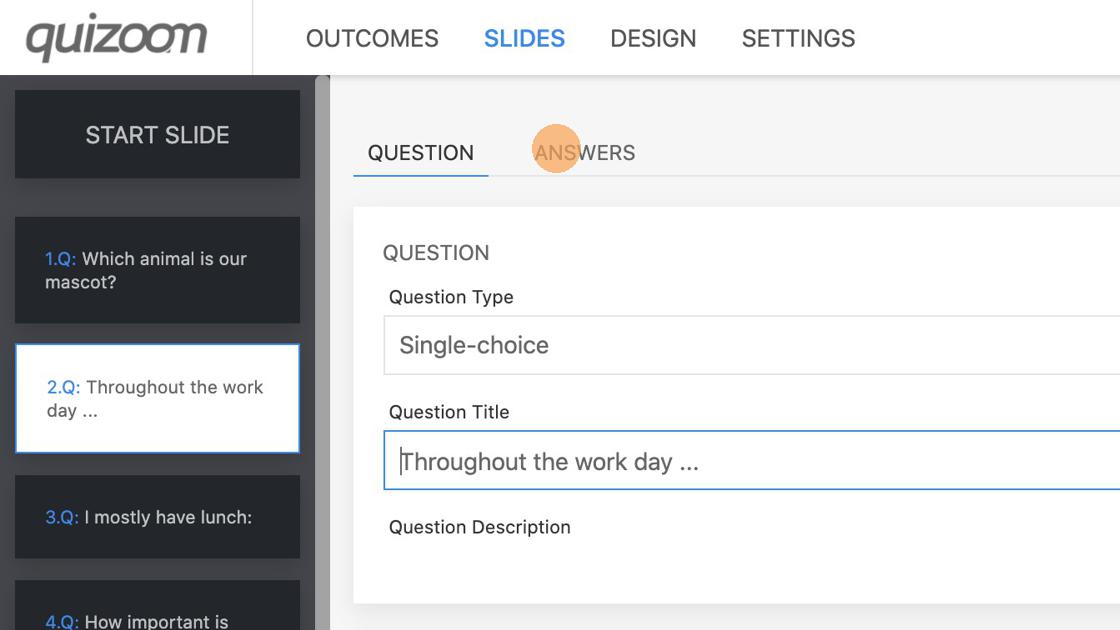
4. Click "SLIDES"
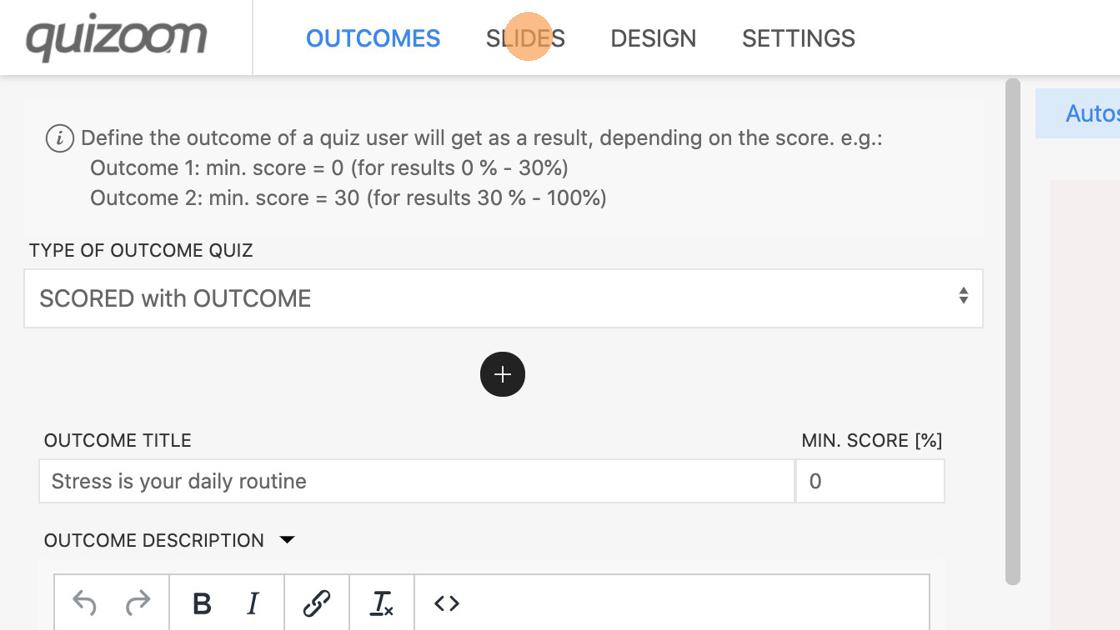
5. Click "ANSWERS"
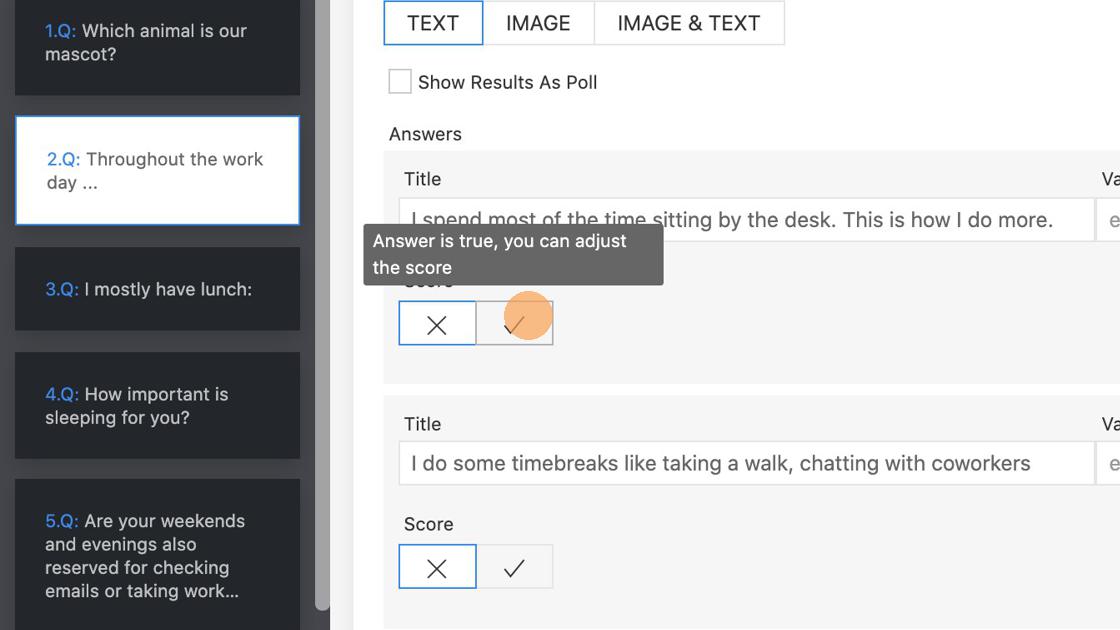
6. By default, all answers are marked as wrong. Click the check icon to mark the question as correct.
7. After merking the answer as correct, you can adjust the score. By default, the score is 1, but you can change it to any number. A higher number will give this answer more weight when calculating the Outcome.
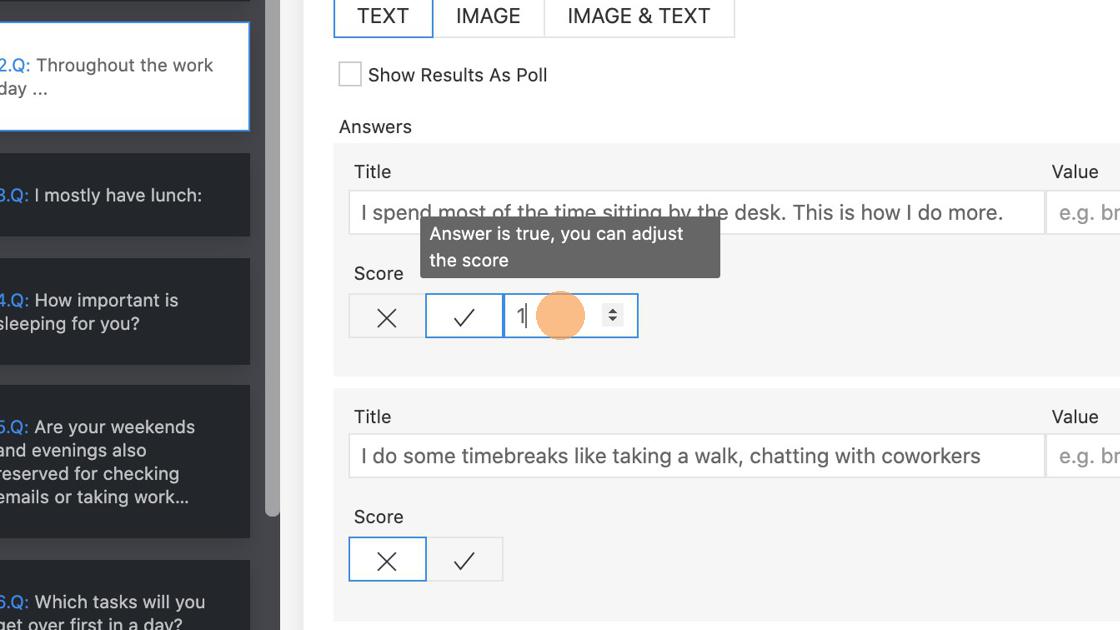
You can mark multiple answers as correct and adjust different scores to each answer. This way different correct answers will have different weights when calculating the Outcome.