
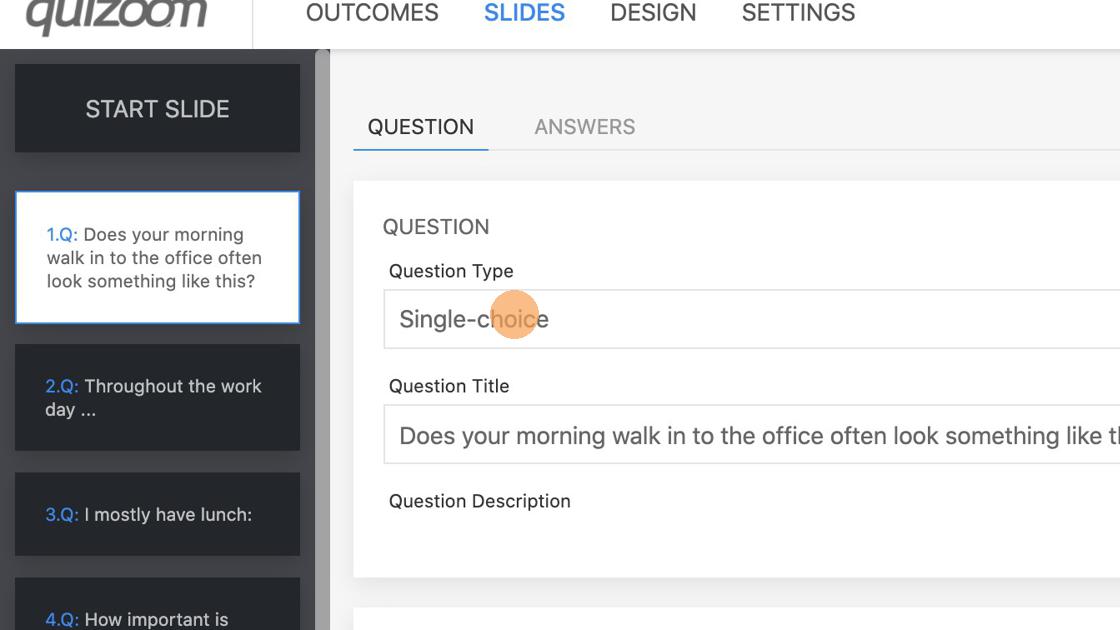
1. Select Multi-choice from the dropdown.
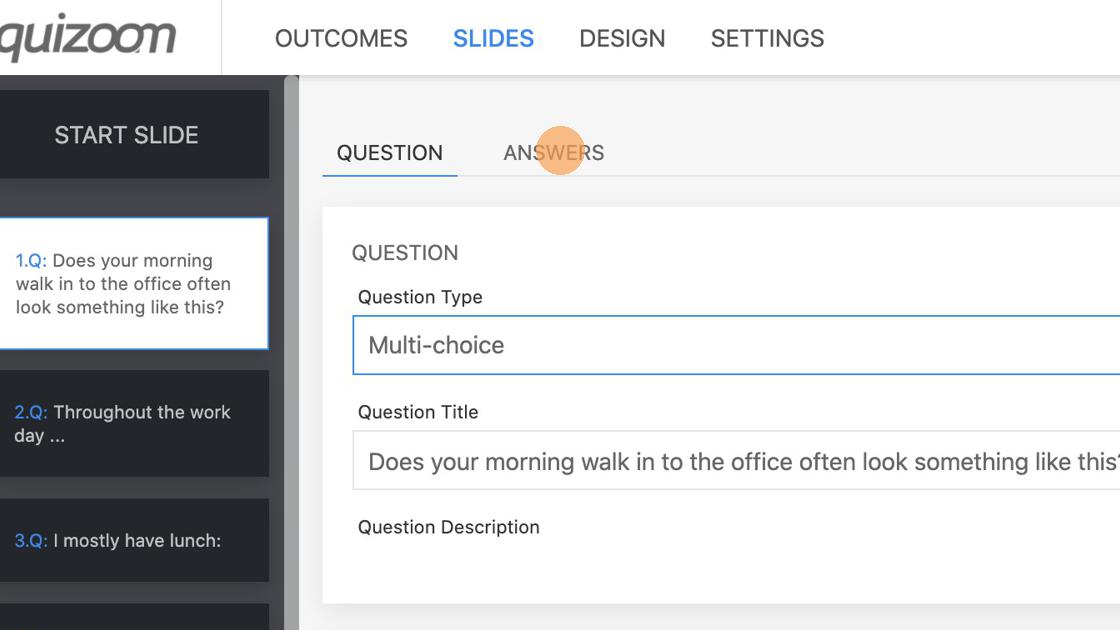
The only mandatory field on Question tab is Question Title. Based on your needs you can add Question Description, Feedback and Media.
2. Click "ANSWERS" to set answers for this question.
3. Click + icon to add new answer.
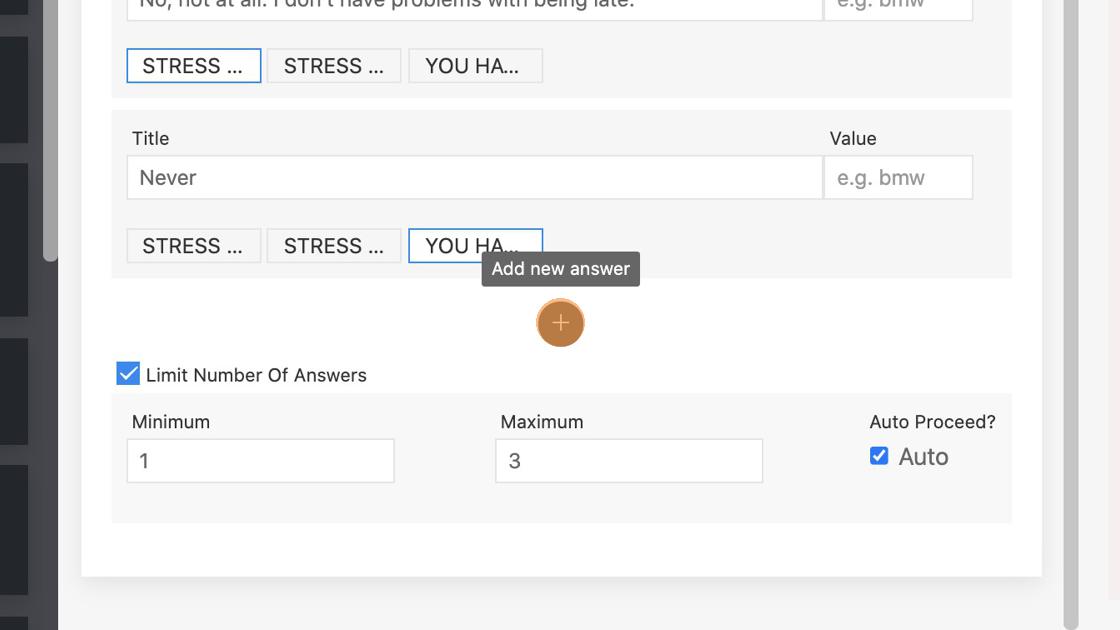
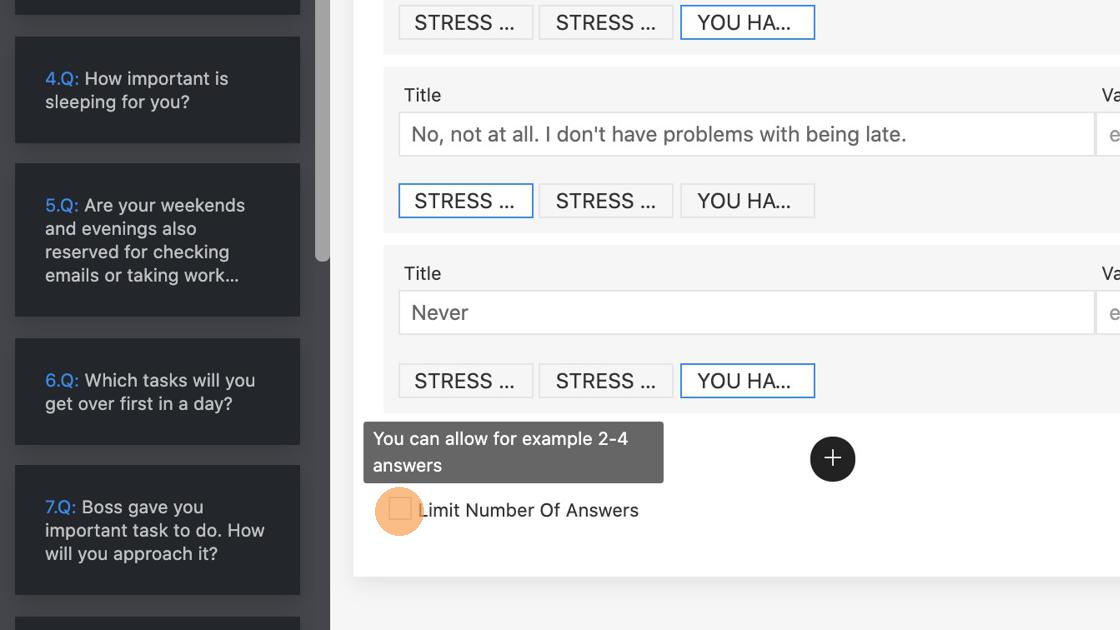
4. Optionally you can limit the number of answers the respondent needs and/or can select.
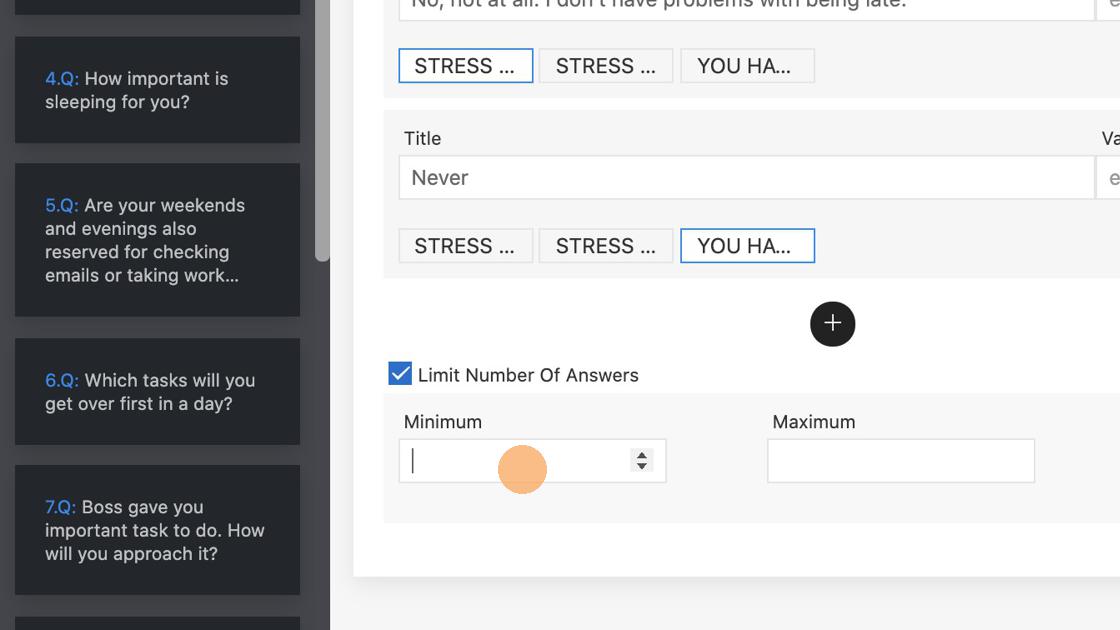
5. Set minimum number or answers the respondent needs to select.
6. Set maximum number or answers the respondent can select.
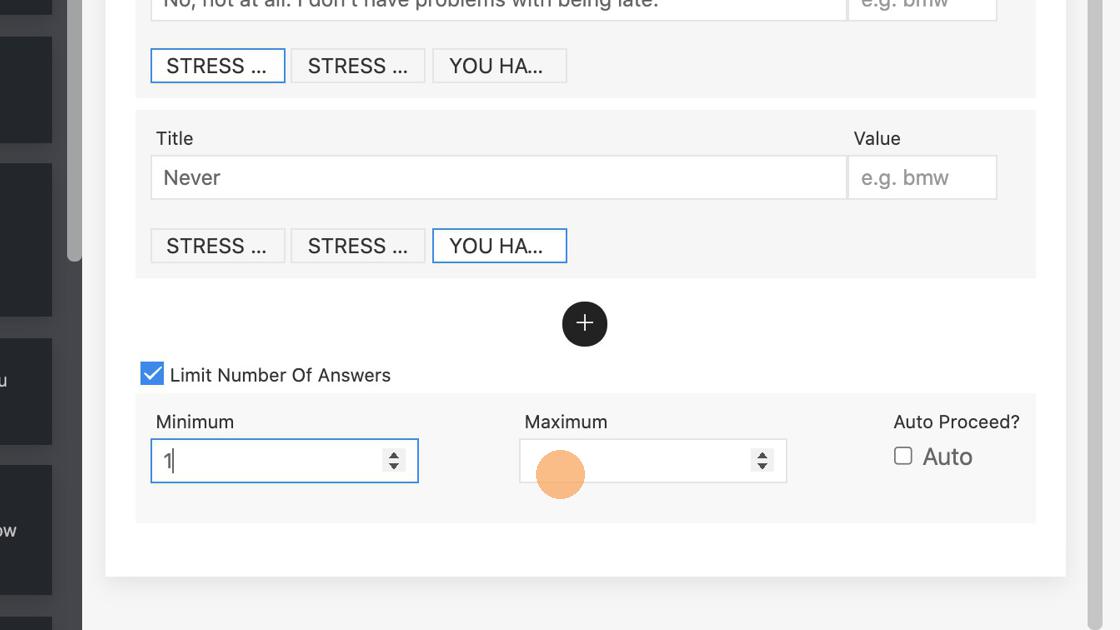
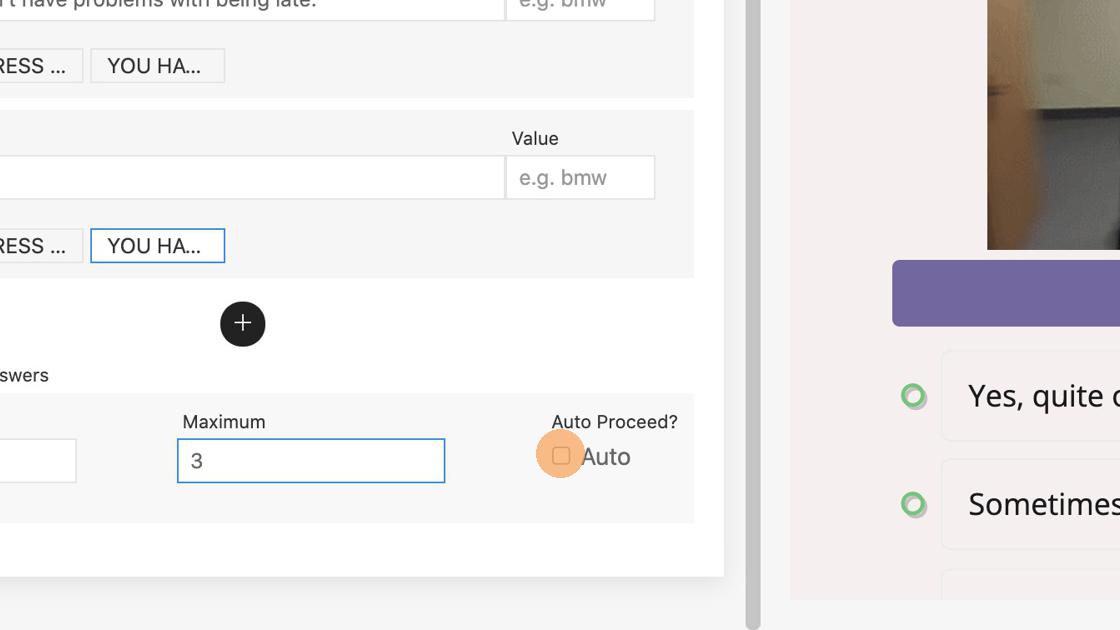
7. With the "Auto proceed" function the respondent will be taken to the next slide automatically after selecting the required number of answers.